How to Connect a Security Camera to WiFi
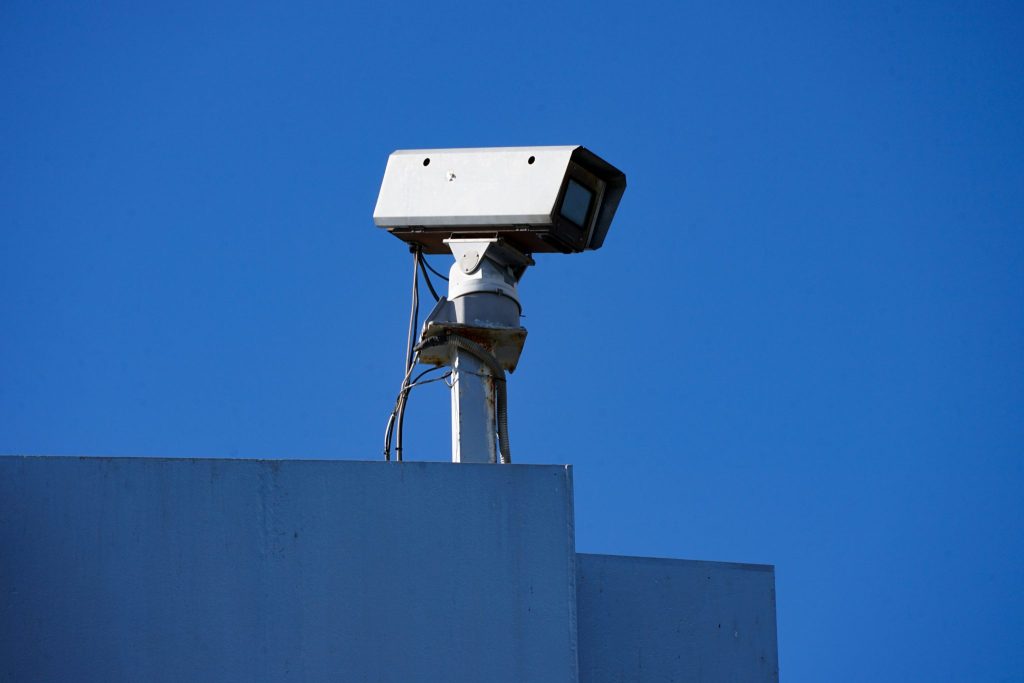
Quick overview: Connecting a security camera to WiFi is usually a five-minute job — until it isn’t, and the culprit is almost always the same: most WiFi cameras only work on the 2.4 GHz band, not 5 GHz, while your phone defaults to 5 GHz. This guide walks through the correct setup order, the 2.4 GHz issue and how to work around it, the QR-code scanning trick that trips people up, and a full troubleshooting checklist for when a camera stubbornly refuses to connect. Get the band right and most “won’t connect” problems disappear.
The One Thing to Know First: 2.4 GHz vs 5 GHz
Most WiFi security cameras connect only on the 2.4 GHz band. There’s a good reason: 2.4 GHz uses lower-frequency radio waves that travel farther and pass through walls better than 5 GHz — exactly what you want for a camera mounted outside, far from the router. The downside is more interference, but for a camera that’s a fair trade.
A 2.4 GHz-only camera physically cannot join a 5 GHz network — they’re incompatible frequencies. The problem is that modern routers often broadcast both bands under one network name and “steer” your phone onto 5 GHz, and many setup apps try to hand the camera the same network your phone is on. Result: the camera can’t connect to a band it doesn’t support. This single mismatch causes the majority of “my camera won’t connect to WiFi” complaints.
Standard Setup, Step by Step
- Power on and charge the camera. For battery cameras, charge fully over USB-C first so it doesn’t die mid-setup.
- Install the manufacturer’s app and create an account.
- Put the camera in pairing mode. Usually you wait for a blinking blue (or sometimes another color) LED, which signals it’s ready to be set up.
- Set up close to the router. Place the camera within about 10–15 feet of the router during setup. You can move it to its final spot once it’s connected.
- Put your phone on the 2.4 GHz band. If your network broadcasts both bands under one name, your phone may be on 5 GHz — see the workaround below.
- Enter your WiFi password in the app and let the camera connect. Some cameras connect via the app passing credentials; others show a QR code on your phone for the camera to scan.
- Confirm the live feed, then mount the camera in its final location.
Scanning the QR Code (When Your Camera Uses One)
Many cameras complete pairing by having the camera’s lens scan a QR code the app displays on your phone. This step fails surprisingly often, and the fixes are simple:
- Turn your phone’s screen brightness to 100% so the code is crisp and high-contrast.
- Clean the camera lens — a smudge blurs the code.
- Hold the phone about 4–8 inches from the lens, steady, and give the camera a moment to focus.
- Wait for the blinking LED that indicates the camera is ready to scan before holding up the code.
How to Force the 2.4 GHz Band
If the camera won’t connect, get it onto 2.4 GHz with one of these approaches — listed easiest first:
- Connect your phone to 2.4 GHz, then run setup. If your router has separate network names per band, simply join the 2.4 GHz one on your phone first.
- Give the bands separate names. In your router settings, name the bands distinctly (for example “MyNetwork_2.4” and “MyNetwork_5”). This permanently removes the ambiguity and is the cleanest long-term fix.
- Disable band steering. Many routers have a “smart connect” or “dual-band steering” feature that merges the bands — temporarily turning it off forces devices onto the correct band.
- Temporarily disable the 5 GHz band. As a last resort during setup, turn off 5 GHz in the router so the only option is 2.4 GHz. Complete the camera setup, then re-enable 5 GHz — the camera stays on 2.4 GHz afterward.
Troubleshooting: Camera Won’t Connect
| Symptom | Likely cause | Fix |
|---|---|---|
| Connects to nothing during setup | Phone on 5 GHz / band mismatch | Force phone and camera onto 2.4 GHz |
| “Wrong password” but password is right | Camera trying 5 GHz network | Separate the band names; retry on 2.4 GHz |
| QR scan won’t register | Dim screen, dirty lens, wrong distance | 100% brightness, clean lens, hold 4–8 in away |
| Connects then drops far from router | Weak signal at mounting spot | Add a mesh node/extender or use PoE |
| Never enters pairing mode | Not reset / dead battery | Charge fully; press/hold reset until LED blinks |
A general checklist when nothing works:
- Confirm the band. Nine times out of ten, this is it — get both phone and camera onto 2.4 GHz.
- Double-check the password for typos and case sensitivity, and avoid unusual special characters some cameras reject.
- Move closer to the router for setup, then relocate the camera afterward.
- Reboot the router and the camera to clear a stuck connection.
- Reset the camera to factory pairing mode and start fresh if it’s stuck in a half-configured state.
- Update the app and the camera firmware, which occasionally fixes connection bugs.
Fixing Weak Signal at the Camera’s Final Spot
A camera that pairs fine next to the router but drops out once mounted at the back of the house has a signal-strength problem, not a setup problem. Options, roughly in order of effort:
- Add a mesh WiFi node near the camera’s location to extend strong coverage outdoors.
- Use a WiFi extender as a cheaper, if less seamless, alternative.
- Reposition the router or remove obstacles — thick masonry walls and metal heavily attenuate WiFi.
- Switch to a wired or PoE camera for spots WiFi just can’t reach reliably; one Ethernet cable carries both power and data with no signal worries. See our notes on power and connectivity in how to choose a home security camera.
If you haven’t mounted yet, our installation guide recommends confirming the connection at the final location before drilling, precisely to catch signal issues early.
Understanding the LED Status Lights
The small indicator light on a camera is the fastest way to tell where you are in the connection process, and the colors follow a rough convention across most brands. A solid or slowly blinking blue typically means the camera is ready to be set up or is in pairing mode — this is the cue to start the app’s setup flow or present the QR code. A fast-blinking light often signals it’s actively trying to connect, while a red light usually indicates a connection failure or that the camera is offline. A steady “normal operation” light (often a dim solid color or off entirely) means it’s connected and working. Colors vary by manufacturer, so check your camera’s manual, but the general rule holds: wait for the “ready” light before attempting WiFi setup, and treat a persistent red light as a prompt to run the troubleshooting checklist above.
Keeping the Connection Secure
Once your camera is online, a few habits keep the connection both reliable and safe — a WiFi camera is, after all, an internet-connected device in your home.
- Use a strong, unique WiFi password and WPA2 or WPA3 encryption on your router. A camera is only as secure as the network it sits on.
- Change the default camera/app password and enable two-factor authentication on the account if the brand offers it. Reused or default credentials are the most common way camera feeds get compromised.
- Keep firmware updated. Manufacturers patch security holes and fix connection bugs through firmware — enable automatic updates where available.
- Consider a guest or IoT network. Many routers let you put smart devices on a separate network segment, isolating cameras from your phones and computers for an extra layer of safety.
What If There’s No WiFi at the Spot at All?
Some locations — a detached garage, a remote gate, a rural property line — simply have no usable WiFi. You still have options:
- Cellular (LTE/4G/5G) cameras use a mobile data plan instead of WiFi, making them ideal for spots with no network. They typically carry their own small data subscription.
- PoE cameras run data and power over one Ethernet cable back to a switch or NVR — no WiFi involved and rock-solid for permanent installs.
- A dedicated outdoor mesh node or access point can extend your home WiFi out to a structure that’s currently out of range.
If a location’s connectivity is genuinely marginal, it’s better to plan for one of these from the start than to fight an unreliable WiFi link indefinitely.
Frequently Asked Questions
Why won’t my security camera connect to WiFi?
The most common reason is a band mismatch: most security cameras only support 2.4 GHz WiFi, but your phone is connected to 5 GHz, so the camera can’t join the network the app is trying to hand it. Connect your phone to the 2.4 GHz band (or give the bands separate names in your router), set the camera up within 10–15 feet of the router, and retry.
Do security cameras use 2.4 GHz or 5 GHz WiFi?
Most WiFi security cameras use 2.4 GHz because it reaches farther and passes through walls better than 5 GHz — important for cameras mounted outside, away from the router. Some newer cameras are dual-band and support both. A 2.4 GHz-only camera cannot connect to a 5 GHz network at all, so check the camera’s supported band before setup.
How do I connect a 2.4 GHz camera when my router only shows one network?
Many routers broadcast both bands under one name and steer devices automatically. To force 2.4 GHz, log into your router and either give the bands separate names (like “Network_2.4” and “Network_5”), disable band steering or “smart connect,” or temporarily turn off the 5 GHz band during camera setup and re-enable it afterward. The camera will stay on 2.4 GHz once connected.
Why won’t the QR code scan during camera setup?
QR scanning needs a clean, sharp image. Set your phone’s brightness to 100%, wipe the camera lens clean, and hold the phone about 4–8 inches from the lens, holding steady so the camera can focus. Wait for the blinking LED that signals the camera is ready to scan before presenting the code, and try again if it doesn’t register the first time.
How close to the router should I set up a WiFi camera?
Set the camera up within about 10–15 feet of the router. A strong signal during pairing avoids connection failures, and once setup is complete you can move the camera to its permanent location. If the final spot has weak signal and the camera drops out there, add a mesh node or extender, or switch to a wired/PoE camera.
Can a security camera work on 5 GHz WiFi?
Only if the camera is dual-band and explicitly supports 5 GHz. Many cameras are 2.4 GHz-only and physically cannot use 5 GHz. If you specifically need a 5 GHz connection — for example for higher-bandwidth 4K streaming close to the router — confirm the camera lists dual-band or 5 GHz support before buying, rather than assuming it.
Conclusion
Connecting a security camera to WiFi is straightforward once you know the secret: it almost always comes down to the 2.4 GHz band. Set the camera up close to the router, make sure both your phone and the camera are on 2.4 GHz, mind the QR-scan basics, and work the troubleshooting checklist if it stalls. For spots WiFi can’t reach reliably, a mesh node or a wired/PoE camera solves it for good. For choosing a camera with the right connectivity for your home, see how to choose a home security camera and our Best Home Security Cameras guide.
Last updated: June 2026
See our main guide: Best Home Security Cameras.