Are you struggling with your security camera’s connectivity, locked out due to a forgotten password, or planning to reconfigure your entire surveillance system? A factory reset can be the essential solution, restoring your device to its original, out-of-the-box state. Understanding this process is key to maintaining a functional and secure home or business environment. This guide will walk you through why and how to perform a factory reset, what to expect, and the crucial steps to take afterward to ensure your security camera system is back up and running smoothly.
What is a Factory Reset and Why Do It?
A factory reset, often referred to as a hard reset or default restore, is a procedure that erases all user-defined settings, configurations, and data from an electronic device, reverting it to its original manufacturing state. For security cameras, this means wiping network settings, passwords, recording schedules, motion detection zones, and any custom preferences you’ve set.
There are several compelling reasons why you might need to factory reset your security camera:
- Troubleshooting Persistent Issues: If your camera frequently experiences connectivity problems, freezes, or other software glitches that standard troubleshooting can’t resolve, a factory reset can clear corrupt firmware or settings causing the malfunction.
- Forgotten Passwords or Access Credentials: This is one of the most common reasons. If you’ve lost or forgotten your camera’s login password, a factory reset is typically the most reliable way to regain access and set new credentials.
- Preparing for Sale or Transfer of Ownership: To protect your privacy and security, it’s vital to erase all your personal data and network configurations before selling, gifting, or otherwise transferring ownership of a security camera.
- Starting Fresh with a New Network Setup: If you’ve changed your Wi-Fi router, internet service provider, or moved your camera to a new location with a different network, a factory reset allows for a clean slate to configure new network parameters.
- Resolving System Instability After Power Outages: Power fluctuations or outages can sometimes corrupt a camera’s operating system or network settings, leading to instability. A reset can resolve these underlying issues.
Before You Begin: Important Considerations
Performing a factory reset is a significant step that shouldn’t be taken lightly. It’s crucial to be aware of the implications and prepare accordingly.
- Data Loss is Inevitable: All your customized settings, including network configurations, alarm schedules, motion detection zones, and user accounts, will be permanently erased. If your camera has internal storage (like an SD card) and stores footage locally, the reset might also erase this data. Cloud-based recordings are generally safe, but it’s always wise to verify with your service provider.
- Consult Your User Manual: Every security camera model can have unique procedures for a factory reset. The location of the reset button, the duration it needs to be held, and specific power cycling instructions can vary significantly between brands and models. Your camera’s user manual is the definitive guide.
- Stable Power Source: Ensure your camera is connected to a stable and reliable power source throughout the reset process. Interrupting power during a reset can potentially damage the camera’s firmware, rendering it inoperable.
- Be Prepared for Re-setup: After a factory reset, your camera will behave like a brand-new device. You will need to reconnect it to your network, set up new passwords, and reconfigure all desired settings from scratch. This requires patience and often access to the camera’s mobile app or web interface.
Methods to Factory Reset Your Security Camera
There are typically two main methods to factory reset a security camera: using a physical button or through its software interface.
Method 1: Using the Physical Reset Button (Most Common)
Most security cameras, especially IP cameras, come equipped with a physical reset button. This is generally the most straightforward and universally applicable method.
- Locating the Button: The reset button is usually small and recessed to prevent accidental presses, requiring a pointed object like a paperclip or a thin pin to activate. You’ll often find it on the back, bottom, or side of the camera. For outdoor cameras, it might be located within a weatherproof compartment.
- Step-by-Step Guide:
- Power Down: Begin by disconnecting your camera from its power source. This ensures a clean restart of the process.
- Locate the Button: Carefully find the small, often labeled “Reset” button on your camera.
- Press and Hold: Using a paperclip or a similar tool, press and hold the reset button. The duration varies by manufacturer, but typically ranges from 10 to 30 seconds. Some specific models, like certain Uniview cameras, may require holding for 35-40 seconds immediately after plugging the camera back in and within a five-minute window of startup.
- Observe Indicators: While holding the button, watch for any indicator lights on the camera. They might flash, change color, or you might hear an audible chime, signaling that the reset process has initiated.
- Release and Reboot: Once you observe a change or after holding for the recommended duration, release the button. The camera will usually power off and then automatically reboot.
- Confirmation: Allow the camera a few minutes to complete its reboot cycle. It should then be in its default, factory-settings state, ready for new configuration.
|
Our Picks for the Best Security Camera in 2026
As an Amazon Associate I earn from qualifying purchases.
|
||
| Num | Product | Action |
|---|---|---|
| 1 | TP-Link Tapo 1080P Indoor Security Camera for Baby Monitor, Dog Camera w/Motion Detection, 2-Way Audio Siren, Night Vision, Cloud & SD Card Storage, Works w/Alexa & Google Home (Tapo C100) |

|
| 2 | WYZE Cam Pan v3 Indoor/Outdoor IP65-Rated 1080p Pan/Tilt/Zoom Wi-Fi Smart Home Security Camera with Color Night Vision, 2-Way Audio, Compatible with Alexa & Google Assistant, White, 2-Pack |
|
| 3 | Google Nest Cam Outdoor (Wired, 2nd Gen) - 2 Pack - Security Camera with 2K Video and Gemini, Night Vision, 2-Way Audio - Works with Google Home - 2025 Model - Snow |
|
| 4 | Tapo 1080P Indoor Pan/Tilt Wired Security Camera - Works as a Baby & Pet Monitor, Motion Detection, 2-Way Audio, Siren, Night Vision, Subscription-Free Local Storage or Optional Cloud, Black, C201 |
|
| 5 | 2K Cameras for Home Security-Outdoor/Indoor Camera for Dog/Cat/Pet/Nanny/Baby/Elderly, Color Night Vision, White Light, Siren, 24/7 SD Recordings, Works with Alexa, Plug in (C1-White-2pack-2.4G) |
|
| 6 | WYZE Bulb Cam Security Camera, 2K HD Outdoor Light Bulb Camera, Color Night Vision, Dimmable LED Bulb, Motion Detection, Siren Alarm, Works w/Alexa/Google Assistant. Free Expert Support |
|
| 7 | Tapo 2K+ Indoor/Outdoor Wired Security Camera - 2024 PCMag Editors' Choice, Person/Pet/Vehicle Detection, Baby Monitoring, Color Night Vision, Subscription-Free Local Storage or Optional Cloud, C120 |
|
| 8 | 2K No Drill Window Camera-2 Pack 2.4Ghz & 5Ghz WiFi Cameras for Home Security for Indoor & Outdoor Monitoring, Anti-Glare Color Night Vision, Human Detection, 24/7 Recording, Ideal for Apartment, K1 |
|
| 9 | aosu Security Cameras Outdoor Wireless, 4 Cam-Kit, No Subscription, Solar-Powered, Home Security Cameras System with 360° Pan & Tilt, Auto Tracking, 2K Color Night Vision, Easy Setup, 2.4 & 5GHz WiFi |
|
| 10 | Google Nest Cam with Floodlight - Outdoor Camera - Floodlight Security Camera, White, 1 Count (Pack of 1) |
|
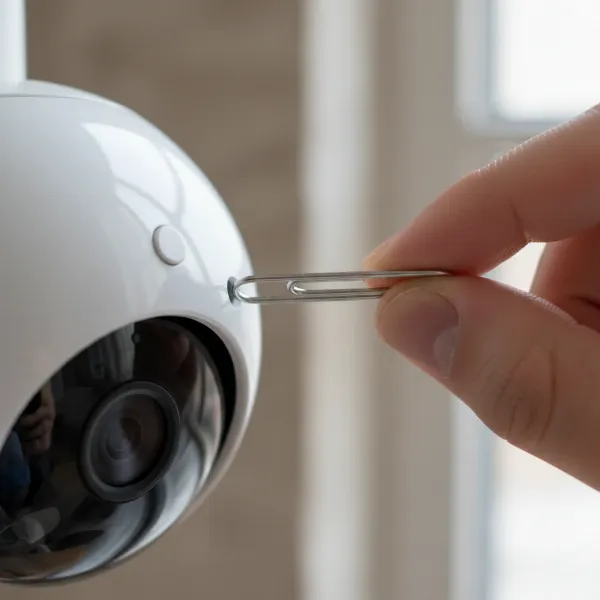 A close-up view of a security camera's reset button being pressed with a paperclip, indicating the factory reset process for common security cameras.
Method 2: Resetting via Web Interface or Mobile App
For some cameras, especially those without an easily accessible physical button, or when you have network access but need a software-based reset, you can use the camera’s web interface or dedicated mobile application.
- When to Use: This method is ideal for cameras integrated into a larger system, or if you can access the camera’s network settings. It’s also a common alternative if a physical reset button is absent or hard to reach.
- Prerequisites: Your camera must be powered on and connected to your network. You will typically need the login credentials for the camera’s interface, unless you are using a specific “forgot password” utility provided by the manufacturer that leverages cloud services.
- General Steps:
- Access the Interface: Open a web browser on a computer connected to the same network as the camera and type in the camera’s IP address, or launch the manufacturer’s mobile app.
- Log In: Enter your camera’s current username and password. If you’re trying to reset due to a forgotten password and have an email associated, some apps offer a password recovery option.
- Navigate to Settings: Once logged in, navigate through the menus to find “System Settings,” “Maintenance,” “Restore,” “Backup & Restore,” or similar options.
- Initiate Factory Reset: Look for an option like “Factory Reset,” “Restore to Default Settings,” or “Erase All Settings.” You will likely be prompted to confirm this action.
- Confirm and Reboot: Confirm your choice, and the camera will begin the reset process, typically followed by an automatic reboot. This may take a few minutes.
What to Do After a Factory Reset
After successfully performing a factory reset, your security camera is essentially a blank slate. You’ll need to set it up as if it were brand new.
Step 1: Reconnect to Your Network
Your camera will no longer remember your Wi-Fi network or wired connection settings.
- Wireless Cameras: The camera will usually start broadcasting a default Wi-Fi signal (like “IP Camera_XXXX”) or become discoverable by the manufacturer’s mobile app in “setup mode.”
- Wired Cameras: The camera will revert to a default IP address (e.g., 192.168.1.XX or 192.168.0.XX) or obtain one via DHCP. You might need a manufacturer-provided discovery tool to find its new IP on your network.
- Use the mobile app or web interface to connect the camera to your home Wi-Fi or configure its wired network settings.
Step 2: Reconfigure Settings
This is the most critical step for both functionality and security.
- Set a Strong, New Password: This is paramount. The camera will revert to default login credentials (e.g., username “admin,” password “admin,” “12345,” or empty). Change this immediately to a unique, complex password to prevent unauthorized access.
- Re-establish Network Settings: Enter your Wi-Fi SSID and password if it’s a wireless camera. For wired cameras, ensure the IP settings are correct for your network.
- Adjust Video Quality and Recording: Set your desired resolution, frame rate, and compression. Reconfigure recording schedules (continuous, motion-activated, scheduled).
- Configure Motion Detection and Alerts: Redefine motion detection zones, sensitivity levels, and set up push notifications or email alerts to your devices.
- Integrate with System: If your camera is part of a larger NVR/DVR system, you’ll need to re-add or re-sync it with the recorder.
Step 3: Test Functionality
Thoroughly test all aspects of your camera to ensure it’s operating as expected.
- Live Feed: Check the live video stream from your app or web interface.
- Recording: Trigger a motion event or check scheduled recordings to confirm footage is being saved.
- Audio (if applicable): Test two-way audio functionality.
- Alerts: Ensure motion detection alerts are correctly sending notifications to your phone or email.
- Integration: Verify that the camera is fully integrated and communicating correctly with any other smart home devices or security systems.
Common Issues and Troubleshooting Tips
While factory resetting is generally straightforward, you might encounter a few hiccups.
- Camera Not Resetting:
- Tip: Double-check the power connection. Ensure you’re holding the reset button for the correct duration as per your manual. Some cameras require the power to be cycled (unplugged and plugged back in) while holding the button, or holding it after powering on within a specific timeframe.
- Cannot Locate Reset Button:
- Tip: Consult your user manual. Search online for your specific camera model and “reset button location.” Sometimes they are hidden under a removable cover or inside the camera casing. If no physical button exists, look for a software reset option.
- Cannot Connect After Reset:
- Tip: Verify your network credentials (Wi-Fi password, network name). Ensure the camera isn’t trying to use a static IP that conflicts with your network. Use the manufacturer’s network discovery tool (often provided via their website or app) to locate the camera’s new IP address.
- Camera Still Malfunctioning:
- Tip: If the camera continues to exhibit issues after a complete factory reset and re-setup, it might indicate a hardware fault. In this case, contact the manufacturer’s customer support for further assistance or warranty claims.
“A factory reset is often seen as a last resort, but it’s an incredibly powerful diagnostic tool. It strips away layers of potential software conflicts and user errors, giving you a clean slate to build a stable and secure surveillance setup. Always back up critical configurations if possible, and meticulously follow the post-reset setup to ensure maximum effectiveness.” – John Smith, Security Camera Technician
Conclusion
Resetting your security camera to factory settings can seem daunting, but it’s a fundamental skill for any camera owner. Whether you’re troubleshooting persistent issues, recovering from a forgotten password, or preparing your device for a new home, understanding this process ensures you can maintain control and security over your surveillance system. Always proceed with caution, consult your device’s specific instructions, and meticulously reconfigure your settings for optimal performance and robust security. By mastering the factory reset, you empower yourself to keep your property protected and your mind at ease. What security challenges has a factory reset helped you overcome in your home or business?
Frequently Asked Questions
How long does it take to factory reset a security camera?
Typically, physically holding the reset button takes between 10 to 40 seconds. After releasing the button, the camera usually requires a few minutes to reboot and fully revert to its default factory settings.
Will a factory reset erase my recorded footage?
If your camera stores recordings locally on an internal SD card or built-in storage, a factory reset will almost certainly erase that footage. However, footage stored on cloud servers is usually unaffected, but always verify with your cloud service provider.
Do all security cameras have a reset button?
No, while the vast majority of security cameras do feature a physical reset button, some newer or more compact designs might rely exclusively on software-based resets accessible through their mobile app or web interface.
What is the default password after a factory reset?
After a factory reset, your camera will revert to its original default login credentials. Common defaults include “admin” for both username and password, “12345,” or sometimes no password at all. It is critically important to change this immediately for security.
Can I reset my camera if I forgot the password?
Yes, a factory reset is the primary and most reliable method to regain access to your Security Camera if you have forgotten its password, as it clears all user-defined settings, including the current password.