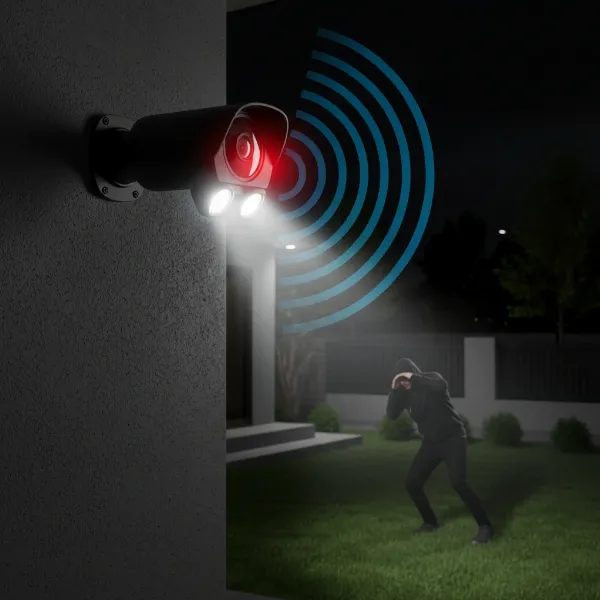
In the rapidly evolving world of security, a responsive surveillance system is paramount. When your security camera footage experiences lag or delay, it can compromise crucial monitoring, leaving gaps in your vigilance and potentially impacting critical security responses. This article delves into the common culprits behind these frustrating delays and provides actionable troubleshooting steps to ensure your security cameras deliver seamless, real-time protection.
What is Security Camera Lag and Delay?
Security camera lag refers to the noticeable delay between a real-world event and its appearance on your monitoring screen. This isn’t just a minor inconvenience; it can be a critical security flaw. Imagine a perpetrator entering a property, but their image only appears on your screen seconds later. This delay can render real-time alerts ineffective and make it challenging to react promptly or gather precise evidence. Understanding its causes is the first step toward a more reliable security setup.
Common Causes of Security Camera Lag and Delay
Several factors, ranging from network infrastructure to camera settings, can contribute to frustrating delays in your security footage. Identifying the root cause is crucial for effective troubleshooting.
Network Bandwidth and Congestion
|
Our Picks for the Best Security Camera in 2026
As an Amazon Associate I earn from qualifying purchases.
|
||
| Num | Product | Action |
|---|---|---|
| 1 | Google Nest Cam with Floodlight - Outdoor Camera - Floodlight Security Camera, White, 1 Count (Pack of 1) |

|
| 2 | WYZE Cam Pan v3 Indoor/Outdoor IP65-Rated 1080p Pan/Tilt/Zoom Wi-Fi Smart Home Security Camera with Color Night Vision, 2-Way Audio, Compatible with Alexa & Google Assistant, White, 2-Pack |
|
| 3 | aosu Security Cameras Outdoor Wireless, 4 Cam-Kit, No Subscription, Solar-Powered, Home Security Cameras System with 360° Pan & Tilt, Auto Tracking, 2K Color Night Vision, Easy Setup, 2.4 & 5GHz WiFi |
|
| 4 | WYZE Bulb Cam Security Camera, 2K HD Outdoor Light Bulb Camera, Color Night Vision, Dimmable LED Bulb, Motion Detection, Siren Alarm, Works w/Alexa/Google Assistant. Free Expert Support |
|
| 5 | Tapo 1080P Indoor Pan/Tilt Wired Security Camera - Works as a Baby & Pet Monitor, Motion Detection, 2-Way Audio, Siren, Night Vision, Subscription-Free Local Storage or Optional Cloud, Black, C201 |
|
| 6 | TP-Link Tapo 1080P Indoor Security Camera for Baby Monitor, Dog Camera w/Motion Detection, 2-Way Audio Siren, Night Vision, Cloud & SD Card Storage, Works w/Alexa & Google Home (Tapo C100) |
|
| 7 | Google Nest Cam Outdoor (Wired, 2nd Gen) - 2 Pack - Security Camera with 2K Video and Gemini, Night Vision, 2-Way Audio - Works with Google Home - 2025 Model - Snow |
|
| 8 | 2K No Drill Window Camera-2 Pack 2.4Ghz & 5Ghz WiFi Cameras for Home Security for Indoor & Outdoor Monitoring, Anti-Glare Color Night Vision, Human Detection, 24/7 Recording, Ideal for Apartment, K1 |
|
| 9 | Tapo 2K+ Indoor/Outdoor Wired Security Camera - 2024 PCMag Editors' Choice, Person/Pet/Vehicle Detection, Baby Monitoring, Color Night Vision, Subscription-Free Local Storage or Optional Cloud, C120 |
|
| 10 | 2K Cameras for Home Security-Outdoor/Indoor Camera for Dog/Cat/Pet/Nanny/Baby/Elderly, Color Night Vision, White Light, Siren, 24/7 SD Recordings, Works with Alexa, Plug in (C1-White-2pack-2.4G) |
|
One of the most frequent reasons for security camera lag is insufficient network bandwidth or congestion. High-resolution video streams demand significant data transfer. If your internet connection or local network cannot handle the volume of data being transmitted by multiple cameras, delays will occur. Network congestion, often caused by numerous devices sharing the same network simultaneously (e.g., streaming services, gaming, large downloads), further exacerbates this problem by competing for the available bandwidth.
Wi-Fi vs. Wired Connections
While convenient, Wi-Fi connections are inherently less stable and more susceptible to interference than wired Ethernet connections. Wireless signals can be impacted by distance, physical obstructions (walls, furniture), and electromagnetic interference from other devices like microwaves or cordless phones. These factors can lead to signal degradation, packet loss, and ultimately, video lag and delay. Wired connections provide a direct, more reliable data path, minimizing these potential issues.
Outdated Firmware and Software
Like any electronic device, security cameras, Network Video Recorders (NVRs), and Digital Video Recorders (DVRs) rely on firmware (the embedded software) to function correctly. Outdated firmware can contain bugs, security vulnerabilities, or simply lack optimizations found in newer versions, leading to performance issues like lag and dropped frames. Regularly updating firmware ensures your devices operate at peak efficiency with the latest improvements and bug fixes.
High Video Resolution and Frame Rate
Higher video resolutions (e.g., 4K instead of 1080p) and frame rates (e.g., 30 frames per second instead of 15 fps) produce a more detailed and smoother image, but they also require significantly more bandwidth and processing power. If your network infrastructure or recording device cannot handle these demands, the system will struggle to process the video in real-time, resulting in noticeable lag. Balancing image quality with system capabilities is essential for optimal performance.
Insufficient Recording Device (NVR/DVR) Resources
The NVR or DVR is the central hub for most security camera systems, responsible for processing, displaying, and storing video feeds. If the NVR/DVR has insufficient processing power, limited storage write speed, or if it’s overloaded with too many high-resolution cameras exceeding its decoding capabilities, it can become a bottleneck, leading to video lag. Older or lower-spec devices are particularly prone to these issues.
Poor Cable Quality and Length
The physical cables connecting your cameras to the network are vital for stable data transmission. Low-quality Ethernet cables, or those that exceed their recommended maximum length (typically 100 meters for standard Ethernet without signal boosters), can suffer from signal degradation and data loss. This poor signal integrity translates directly into delayed or choppy video feeds. Oxidized or damaged cable connectors can also impede data flow.
Interference and Camera Placement
Beyond Wi-Fi interference, improper camera placement can also contribute to performance issues. Placing cameras in direct sunlight or facing bright lights can cause glare and force the camera’s sensor to work harder, potentially leading to processing delays. Similarly, physical obstructions in the field of view can trigger unnecessary motion detection alerts, wasting processing cycles and slowing down overall system responsiveness.
Storage Device Performance
The speed at which your NVR/DVR or individual cameras can write data to their storage devices (e.g., hard drives, SD cards) directly impacts performance. If you are using a slow-speed SD card or an aging hard drive with poor write speeds, the device may struggle to keep up with the incoming video stream, causing buffering and lag. High-quality, fast storage is critical for smooth, continuous recording.
How to Troubleshoot and Fix Security Camera Lag and Delay
Addressing security camera lag requires a systematic approach, tackling potential issues from the network level to individual camera settings.
Assess Your Network Connection
Start by checking your internet speed using an online speed test. Compare your upload and download speeds with your camera manufacturer’s recommendations. If your bandwidth is insufficient, consider upgrading your internet plan. Also, reduce network congestion by disconnecting unnecessary devices or prioritizing security camera traffic using Quality of Service (QoS) settings on your router. A dedicated network or VLAN for your CCTV system can also isolate its traffic.
Optimize Camera Video Settings
Access your camera’s settings via its web interface or the NVR/DVR software. Experiment with lowering the video resolution (e.g., from 4K to 1080p or 720p) and reducing the frame rate (e.g., from 30fps to 15fps). You can also adjust video compression settings, opting for more efficient codecs like H.265 if available. These adjustments significantly reduce the data load, often resolving lag issues without severely compromising image quality.
Update Firmware Regularly
Visit your camera, NVR, and DVR manufacturers’ websites to download and install the latest firmware versions. Firmware updates frequently include performance enhancements, bug fixes, and security patches that can directly address lag-related problems. Follow the manufacturer’s instructions carefully for the update process, and remember to reboot your devices afterward.
Consider Wired Connections
For critical surveillance areas or where Wi-Fi is consistently unreliable, switch to wired Ethernet connections. Running Ethernet cables provides a stable, interference-free pathway for video data, drastically reducing the likelihood of lag. If extending wired connections is challenging, consider powerline adapters as an alternative, though they can still be susceptible to electrical interference.
Upgrade Network Hardware
If your router or network switches are old or entry-level, they might not be capable of handling the demands of multiple high-resolution camera streams. Investing in a high-performance router and managed switches can significantly improve network efficiency and reduce latency. Ensure your network equipment supports gigabit Ethernet for optimal performance.
Manage Recording Device Load
Check your NVR/DVR’s specifications to ensure it can support the number and resolution of your connected cameras. If it’s overloaded, consider reducing the number of active cameras, lowering their resolution, or upgrading to a more powerful NVR/DVR with greater decoding and processing capabilities. Regularly rebooting your NVR/DVR can also clear temporary caches and improve performance.
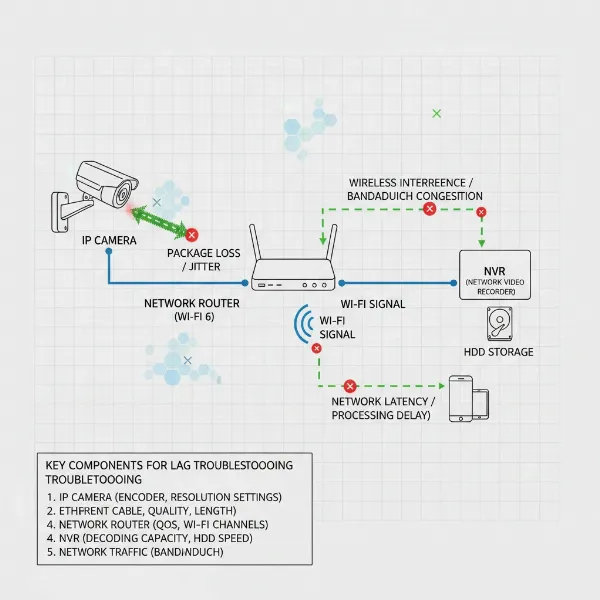 A technical illustration of a security camera system with icons for network, camera, and NVR to represent troubleshooting components.
Ensure Quality Cabling
Inspect all network cables for damage, kinks, or loose connections. Replace any low-quality or excessively long cables with certified, high-quality Ethernet cables (e.g., Cat5e or Cat6). Ensure all RJ45 connectors are securely crimped and properly seated in their ports. Investing in good quality cabling during installation is a cost-effective way to prevent future lag.
Optimize Camera Placement and Motion Detection
Strategically position cameras to minimize unnecessary motion triggers. Adjust motion detection zones to focus only on critical areas, excluding busy public spaces or moving foliage that could generate false alerts. Fine-tune sensitivity settings to avoid triggering on minor movements, thereby reducing the processing load on the camera and NVR/DVR.
Improve Storage Performance
If your system records to SD cards, ensure they are high-speed (e.g., Class 10 or UHS-I/UHS-III). For NVR/DVRs, use surveillance-grade hard drives designed for continuous video recording. Consider upgrading to Solid State Drives (SSDs) if your budget and device support them, as they offer significantly faster read/write speeds. Regularly check the health of your storage devices.
Regular System Reboot
A simple yet often effective solution is to regularly reboot your entire security camera system, including cameras, NVR/DVR, router, and switches. This clears temporary data, refreshes network connections, and can resolve minor software glitches that contribute to lag. Many NVRs offer scheduled reboot options.
> “A security system is only as effective as its most responsive component. Addressing lag and delay isn’t just about troubleshooting; it’s about ensuring your peace of mind is truly undisturbed.” – John Smith, Senior Security Systems Engineer
Expert Tips for Preventing Future Lag
Proactive measures can significantly reduce the likelihood of experiencing security camera lag and delay in the first place.
Strategic Network Design
When setting up your surveillance system, prioritize network design. Consider using a dedicated network switch for your security cameras to isolate their traffic from your general home or business network. This ensures cameras have sufficient bandwidth and prevents other devices from congesting their video streams. Implement VLANs if your router supports them for further network segmentation.
Scheduled Maintenance
Establish a routine maintenance schedule that includes checking for firmware updates, inspecting physical connections, and periodically rebooting your system. Regularly review your camera settings and motion detection zones to ensure they are still optimal for your surveillance needs. Cleaning camera lenses and vents can also prevent overheating, which can degrade performance.
Invest in Quality Hardware
The initial investment in higher-quality security cameras, NVRs/DVRs, network routers, and cabling can save significant headaches down the line. Reputable brands often have better-optimized firmware, more robust hardware, and reliable support. High-performance components are designed to handle continuous video streams and provide consistent, low-latency performance.
Conclusion
Experiencing lag and delay in your security camera feed can be a major source of frustration and a significant security vulnerability. By understanding the common causes—from network congestion and outdated firmware to insufficient hardware resources and poor cabling—and applying the comprehensive troubleshooting steps outlined above, you can restore your security cameras to optimal performance. Ensuring a responsive and reliable security camera system is fundamental to protecting your property and providing true peace of mind. Don’t let delays compromise your safety; take control of your surveillance today. What steps will you take to optimize your security camera system for real-time monitoring?
Frequently Asked Questions
Why is my security camera always lagging, even with fast internet?
Even with fast internet, your security camera might lag due to network congestion, poor Wi-Fi signal strength, outdated camera firmware, or an overloaded NVR/DVR. Internal network issues, like a low-quality router or excessive devices on the same network, can bottleneck the video stream regardless of your internet service provider’s speed.
Does lowering resolution really help with security camera delay?
Yes, lowering the video resolution (e.g., from 4K to 1080p or 720p) significantly reduces the amount of data your camera needs to transmit and your network/NVR needs to process. This can dramatically decrease lag, especially in bandwidth-limited environments or with older hardware, allowing for smoother, more real-time footage.
How often should I update my security camera’s firmware?
It’s recommended to check for and install Security Camera firmware updates regularly, typically every few months or as notifications become available from the manufacturer. Updates often include performance improvements, bug fixes, and critical security patches that can prevent lag and enhance overall system stability and protection.